tarcp.py
uses xz or other compression methods to take the top-level directories and make a 7zip, XZ, or tar archive from each top-level directory, containing all its subdirectories.
Example: say 100000 data files are scattered by date in subdirectories.
This is very cumbersome to share and move around.
xfinitywifi is one of the most
widespread
Wifi SSIDs in the USA.
It’s not just limited to Xfinity cable internet subscribers; other cable companies partner their subscribers in or paid access is available.
Like most WiFi
captive portals,
xfinitywifi uses the device MAC address like a “cookie” after the web browser login.
For devices without a web browser, a more capable device might sign in once with the non-browser device’s MAC.
xfinitywifi has the usual range limits of 2.4 GHz and 5 GHz Wifi.
xfinitywifi is a VLAN-like network, separated from host subscriber network.
The maximum distance from the WiFi router depends on the Xfinity router placement.
For example, one might pickup the router in an adjoining building or dwelling.
Coverage maps are notional, and don’t account for building materials or interference.
Easily
recover a Git-tracked file,
even after several commits have passed.
You need to know the path of the deleted file within the repo.
In this example, suppose it’s “path/to/file.txt”.
This example assumes a Unix-like shell.
For simplicity, on Windows use WSL to do this.
Master PDF Editor is free to use for non-commercial purposes, editing PDFs.
You can edit text (for example, change a word), without screwing up the formatting or images like happens when you import a PDF into a word processing program.
To list or delete arbitrarily named files that are empty (zero bytes), consider
findutils “find” installed by default on most Linux and BSD systems or on Windows via
Microsoft coreutils.
Homebrew
findutils
(e.g. on macOS)
makes the command “gfind” in place of “find”.
Verify the file list to be deleted:
find . -type f -empty | sort
where . is the directory in which to delete the files and sort is used because in general the files are listed in random order.
If satisfied, actually delete the empty files with:
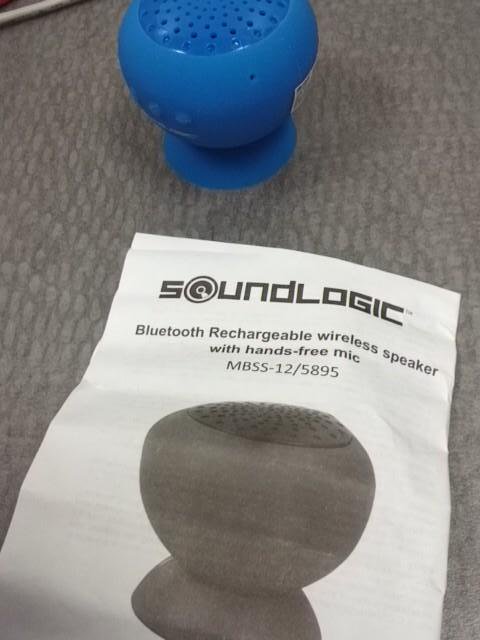
The SoundLogic Suction MBSS-12 Bluetooth speaker sells individually for $5, and in bulk they can be purchased for $2.
The speaker is comfortably audible at a distance of several meters, even outside, so it can be a nice inexpensive gift that is considerably better (louder, fuller fidelity) than a smartphone speaker.
Battery life is a couple hours and it has micro-USB charging.
It has a microphone with profiles for two-way headset as well as higher fidelity A2DP audio.
The speaker plays nice with Linux as just about any device would these days (better than Windows in general).
$5 Bluetooth SoundLogic speaker
Maximum range for this SoundLogic Bluetooth speaker was 10-12 meters in outdoors, line-of-sight conditions with dozens of background Wifi APs at -80 to -70 dBm.
The antenna is a meander-line with 2 dBi claimed gain.
Given the +1dBm conducted transmit power, about +3 dBm EIRP for this speaker.
Remember that EIRP is just one piece of the pie when it comes to maximum range.
I’ll assume the transceiver is well designed, -90 dBm or better RX sensitivity.
Why then is the range of this $2 bluetooth speaker so low?
Because of antenna placement–on the $2 SoundLogic, the meander line antenna is jammed in right behind the buttons, and so the theoretical donut-shaped pattern with nulls off the longways ends of the antenna are complemented with nulls front and back of the speaker.
I didn’t simulate it, but it would be some weird 3-D clover-leaf like pattern. This is why better Bluetooth speakers use dual antennas placed more optimally in their devices.
A Dell speaker bar lost audio output shortly after going out of warranty.
Not thinking to check the headphone jack, I tore it apart, and of course it started working so I couldn’t trace the failure.
Then a couple days later, I lost audio again.
This time I tried headphones and I had sound, and if I jiggled the headphone jack, I would get speaker audio for a bit.
Then the speakers died again with only headphone audio.
I suspect this new old stock part has tarnished contacts, that the insertion of the headphone does not wipe.
So what is needed is new headphone jacks, or jumper the speakers to be always on with headphones.
For now I just plug in headphones.
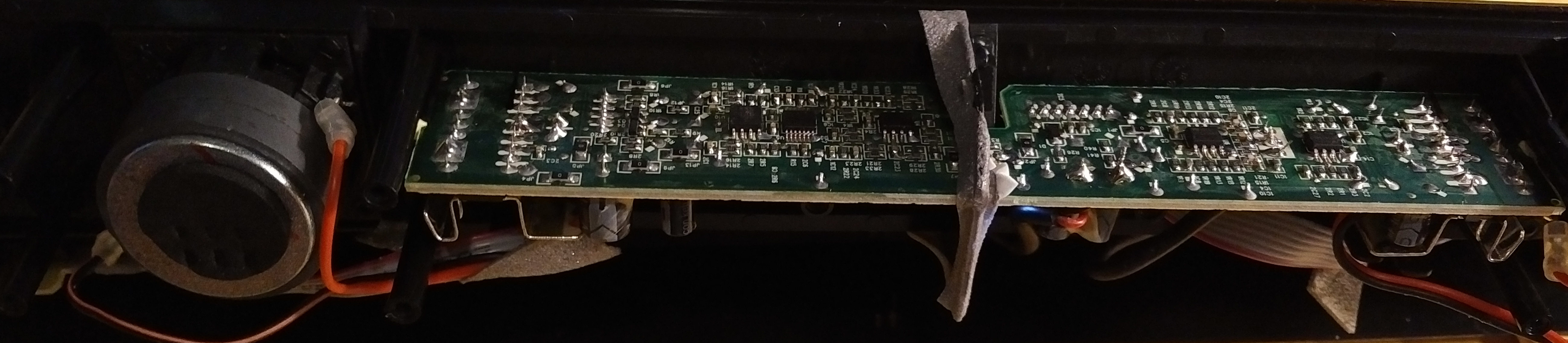
Dell speaker bar
The little headphone jack daughterboard has 5 wires going to it
gnd
left audio
right audio
12V
mute: this line is 9.6 or 5.5 volts, can’t just cut or short it.
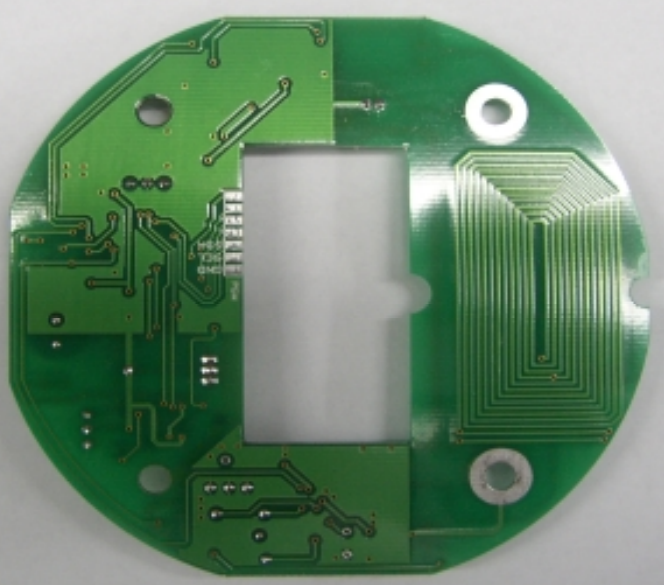
Visiting a large popular museum, they handed out
coaster pagers
with FCC ID “QBTLTK-P1”.
The pager is a 4kHz 1200 baud FSK system running on 26.995 MHz with a 2 Watt transmitter.
The coasters have a loop antenna with about 2.5uV sensitivity, so perhaps 25 m range in good conditions.
The relative insensitivity of such a small antenna and high pager transmit power work against the high levels of interference at the pager frequency.
I wondered why they would use such a low frequency and hence low efficiency antenna for the coaster size.
Pager companies now use UHF (400+ MHz) for these coaster pagers since an efficient quarter-wavelength PCB antenna fits readily into a hand-sized pager.
A decade ago there were all-in-one Samsung S1T8513A chips available that could receive up to 50 MHz.
49 MHz transmitters are at a disadvantage in the USA as the 10000 uV/m -> -15 dBm transmit power vs. 33 dBm transmit power at 27 MHz.
Paging doesn’t require frequency hopping or direct sequence spread spectrum.
The system designer should pick an RF frequency band where the pager receiver antenna will be efficient for the pager size.
For coaster pagers, the UHF band is a good choice, and the friendly ~ 5000 uV/m ~ -20 dBm power limit on UHF license-free transmission under FCC Part 15.231 leads to ~100 m pager range, using simple POCSAG modulation and hence commodity chipsets.
Efficient antenna design in a pager receiver allows for the best performance for a given size.
Selecting the right frequency and antenna design enables the use of license-free power levels to achieve sufficient range.
Interference-free frequencies are crucial to avoid broadband noise from PCs and lighting blocking pager messages with static.
27 / 49 MHz RF frequencies are generally not a good choice for pagers, baby monitors, etc. due to interference.
Pagers operating at higher frequencies, such as 150/450 MHz, can be simple, cost-effective, and provide long-range communication.
The Motorola Minitor fire pagers, which can achieve over 20 km range with powerful licensed base station transmitters, typically operate in the 150 or 450 MHz bands.
Previously I observed 4x
increased range
from repairing the antenna in the RC car.
I was therefore curious what could be characterized and improved for RC helicopter maximum control range.
This is a $50 unit by Interactive Toys, FCC ID RSD-50800TX for the controller and RSD-50800RX for the helicopter.
It’s a 2.4 GHz controller with about 3 dBm EIRP.
The antennas are non-resonant.
The radio system operates under FCC Part 15.249(a), allowing 114 dBμV/m @ 3m radiation ~ +18.77 dBm ~ 75 mW EIRP peak.
The battery is 3.7 V 650 mAh, good for about 10-15 minutes of use.
The manual states up to 6 of these helicopters can be used within line-of-sight of each other.
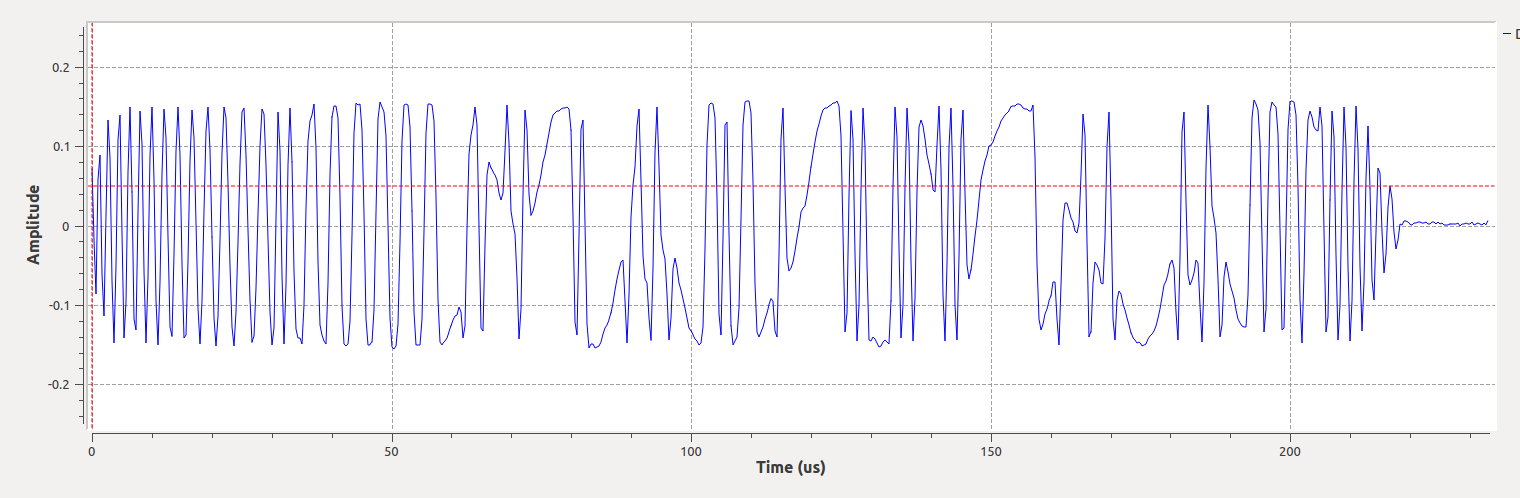
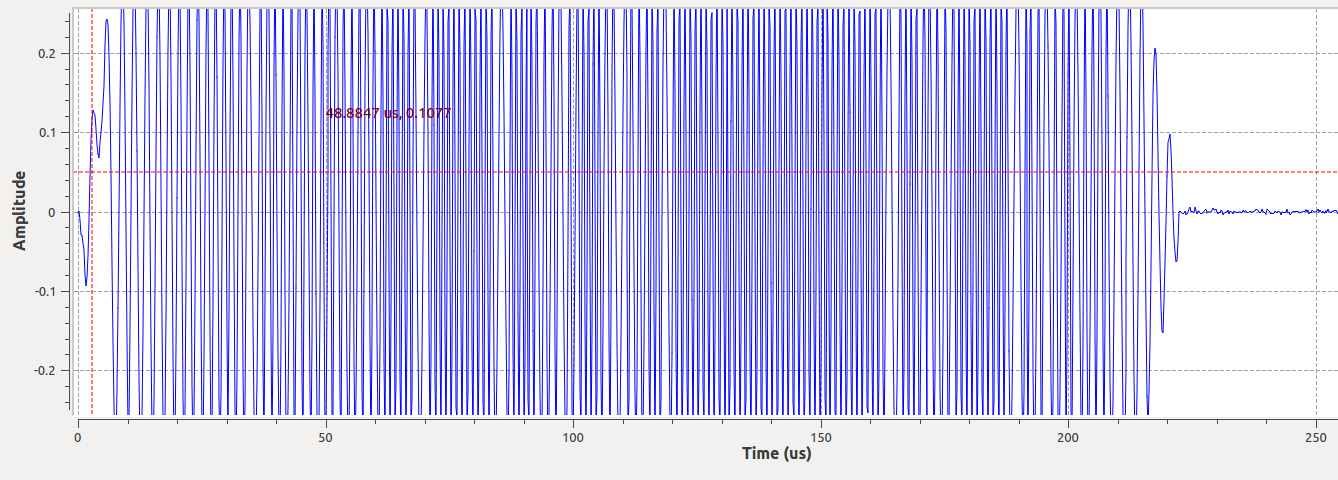
Controller power-on: 33% duty cycle: 200 μs FSK(?) pulse, 600 μs period on 2406 MHz.
Paired waveform, 2408.9 MHz for RC helicopter
Pairing beacon for RC helicopter 2406 MHz
Power either controller or copter on first, within a second or so of both being turned on, they pair, and they go always to 2408.9 MHz, even if there is a strong WiFi signal on channel 1.
The controller antenna is appalling.
They take a Ruixing 2.4 GHz daughterboard, disregard its meander antenna and solder a 6.5 cm wire near the feedpoint of the meander antenna and slather the area in rubber cement.
The maximum range of the RC helicopter could use some improvement, thus the experiment below.
Three things that expected to make a significant improvement (2x to 3x) in maximum RC helicopter control range:
If needed, trim the controller antenna to be about 1/4 wavelength long (just over 3 centimeters).
Bend the Ruixing board about 0.5 cm away from the main PCB, a large groundplane
The 3 cm copter antenna was bent over in a mess of other wires just like the RC car controller, which made such a significant reduction in range. I intend to glue the plastic I cut out back in to help protect the Li Ion battery. I didn’t put the antenna vertical for better coverage, and to avoid getting the antenna caught in the copter blades.
Observations: #1 and #2 made about a 4 dB increase in transmitter EIRP.
From #3 expect a 6-10dB increase in copter transmitter EIRP (and in RX gain).
These devices test well under FCC power limits.
From the test reports it seems the antennas were put in the ideal position.
We have just restored the FCC certified performance.
Controllability problems (weak signal -> intermittent control) when more than about 30 meters slant range to the copter, which is too short for safe operations.
From Friis free space loss equation, to go from 30 m range to 100 m range should take 10.5 dB extra.
Even 60 m from 30 m (6 dB change as doubling range makes 4x weaker by inverse square law) would be an improvement.