Madrigal data repositories
give access to numerous types of geospace data spanning multiple decades.
One kind of data (3505) is GNSS line of sight (LOS) data.
Loading the 10+ GB files is best done by choosing slices of data, typically in time at least.
This example Python script
may help get started.
Plotting the data also requires knowing the location of the receiver and corresponding satellite.
The Madrigal data for GNSS LOS is stored under “Data / Table Layout” as a huge 1D unordered vector of
HDF5 compound data.
h5py can read slices of the
compound data
to avoid wasted reads and overusing RAM.
Note that Matlab “h5read()” currently can read only the entire compound dataset as a struct, which may use a lot of RAM.
Fortran
derived types
are a dual to C / C++
struct.
Using Fortran
bind(C)
attribute of a derived type allows the derived type contents to be passed back and forth with C / C++ using a corresponding struct definition.
When modifying previously build Fortran source code that defines a derived type, a fresh build is required.
This is because the Fortran module files .mod are not introspected by the build system, and hence the build will fail because there is a conflict between the old and new derived type definitions in the module files.
The solution is to delete the build directory and make a fresh build.
Some users may have a long-ago forked repo that the maintainer would like to track in the main repo as an orphan Git branch.
That is, the maintainer does not want to merge the forked repo into the main repo, but would like to track the forked repo as a branch in the main repo.
The branch name “user-feat1” is arbitrary.
git switch --orphan user-feat1
# this allows unrelated history in the branch from the long-ago forked repogit pull https://github.invalid/user/forked.git user-feat1
# copies the forked repo branch into the main repo branch "user-feat1"git push -u origin user-feat1
# push the branch to the main repo
This can be useful for the maintainer to make changes to the user code that the user can put back in their repo without the maintainer needing to fork the user repo, which may not be possible on GitHub if the user forked from the maintainer’s repo originally.
The maintainer can get future changes from the user by doing:
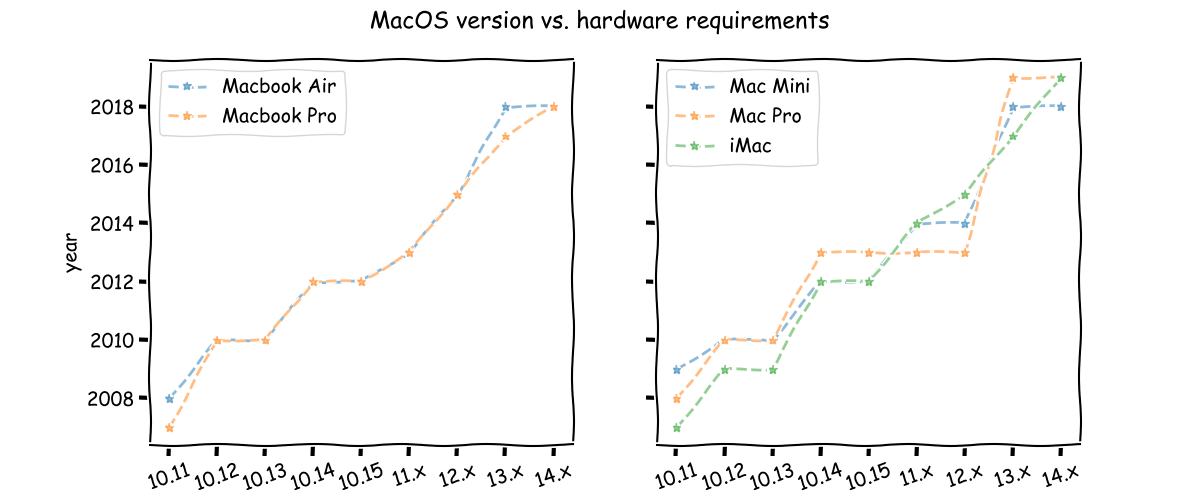
macOS hardware requirements increase over time.
For computers too old for a supported macOS version, consider installing Linux.
Linux normally works very well on Apple computer hardware.
Apple maintains a list of
no longer supported Apple hardware.
Most CMake
policies
default to “OLD” behavior compatible with prior versions of CMake.
cmake_minimum_required(VERSION min…max)
automatically sets all the CMake policies to “new” through the “max” CMake version, limited by the user’s CMake version.
Example: project with cmake_minimum_required(VERSION 3.21...3.26) implicitly sets to NEW all CMake policies CMP0143 and older for users with CMake ≥ 3.26.
A user with CMake 3.22 will get NEW for policies CMP0128 and older.
A user with CMake 3.20 will get an error due to the minimum version given as 3.21.
New versions of CMake don’t get the benefits of new behaviors until specifying the new behavior is OK via cmake_minimum_required(VERSION min...max) maximum version number.
CMake gradually deprecates old policies, such that warnings emit when CMakeLists.txt cmake_policy() or cmake_minimum_required() sets the policy to OLD.
For example, CMake 3.28
deprecated CMake 3.20 CMP0120
and older.
Overleaf
paid accounts
can edit Overleaf LaTeX documents offline and Git push / pull with Git direct to Overleaf.
Direct Git access does not require special GitHub permissiongs and works with GitLab, GitHub, Bitbucket, etc.
Once the procedure below is done, you’ll be able to:
git push
push local changes (after git commit) to Git provider and Overleaf simultaneously
git push provider
push local changes to only Git provider
git push origin
push local changes to only Overleaf
git pull
pull from Overleaf
For simplicity, this procedure assumes the LaTeX project is existing on Overleaf to start.
Starting with a project from the Git provider is more complicated since Overleaf cannot accept force push.
SSH Public Key Authentication is in general recommended for Git (besides Overleaf)
One can simultaneously use Overleaf, GitLab, Dropbox, OneDrive, Bitbucket. Just remember to NOT put a LaTeX Git project into a synced Dropbox / OneDrive folder or you’ll get synchronization errors.
When using TeXLive, the “tlmgr” program allows installing many LaTeX-related packages.
For example, to enable Tikz diagrams via \usepackage{tikz}, install the “pgf” package:
tlmgr install pgf
Packages can also be added to TeXLive by the GUI TeX Live Manager.
Under Package List select Status: All.
On Windows computers, after upgrading software or having left the computer on for days since last reboot (closing lid and reopening included), a memory
Access Violation
may occur:
exit code “-1073741819”
hex code 0x0005
Exception Code: 0xC0000005
The simplest and most common fix is to simply reboot the Windows computer.
We see these errors also during software development when building or configuring the build system such as CMake.
Looking at the build directory file
CMakeConfigureLog.yaml
can provide more insights into the issue.
The world is full of inexpensive USB charging adapters.
Since the adapters connect to AC mains power, a very large amount of energy is available that can result in damage to the device or even the home / office the charger is in under catastrophic failure.
Since nearly every person in the world needs multiple USB charge adapters, the manufacturers compete aggressively on size and price.
This leads the OEMs to be tempted to cut back on safety and interfere-reducing components.
Ethical and responsible manufacturers find a way to keep the quality and safety circuitry intact, and may even go beyond the chip manufacturer and safety regulator requirements.
These extra measures help protect the charger brand image.
A distinct retailer known for quality USB charger adapters is IKEA.
It’s speculated that since they’re putting their own brand on the charger, IKEA is perhaps taking notable care to ensure the chargers don’t damage devices or the surroundings.