Easily record the sounds heard through system speakers on Linux with Pulseaudio and Audacity.
apt install audacity pavucontrol
To record “what you hear” in Audacity: “click to monitor” (right of microphone in main Audacity screen).
Start Pulseaudio advanced configuration tool
pavucontrol
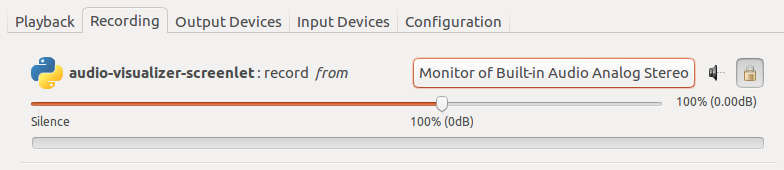
Under pavucontrol Recording tab input, select “Monitor of Built-in XXX” where XXX is the playback device you wish to monitor.
This loopback audio from pavucontrol allows recording what you hear in Linux using Audacity and PulseAudio.
It’s often useful to open the same PDF file multiple times, particularly when reviewing journal article drafts to view figures simultaneously with text describing the figure.
From Evince (popular Linux PDF viewer), Menu select “Open a Copy”.
Open as many copies of the same Postscript or PDF document as desired.
Enable syntax highlighting:
Before every code block, simply include the language name, for example
```fortran
this even works for gdb.
The color code syntax highlighting on your webpage looks quite striking, and the number of languages covered is very extensive.
Despite the different syntax highlighter modules used by different Jekyll web hosting services, almost every language works with the method above.
Github uses Linguist syntax highlighting for its own service (Issues, README.md, etc.)
Github/Gitlab Pages can use Rouge syntax highlighting via Jekyll _config.yml – specify an allowed syntax highlighter.
The two watt transmit power limit across five VHF channels can make MURS appealing for long-range license-free radio systems.
Alternatives for long-range data telemetry and control include
27 MHz radio modems
and 868/900 MHz modems.
Modems are readibly available for MURS including from
Raveon.
MURS data bandwidth of up to 19200 bps is sufficient for many telemetry and control applications.
The longer communications range at 150 MHz is due to the free space loss advantage vs. 868/900 MHz.
However, MURS modems are by definition unable to use spread spectrum to avoid interference.
Warehouses, hotels, shopping malls, construction sites, hobbyists, families, etc. all use MURS frequencies.
868/900 MHz is a widely used frequency band spread over as much as 26 MHz (USA 902-928 MHz band).
With appropriate antennas and line of sight between radios, the one watt transmit power allowed in the USA and numerous other countries allows kilometer+ communication range.
868/900 MHz modems typically employ a frequency hop channel list or FHSS to mitigate interference.
USB host/hubs can use Terminal commands to power on/off USB port remotely.
Linux: apt install gcc make libusb-1.0-0-dev
macOS: brew install gcc libusb make
The uhubctl program allows controlling power for many USB hub models:
git clone https://github.com/mvp/uhubctl

make

./uhubctl -h
Note: key system devices, even built-in laptop keyboards are connected by USB, and you could accidentally poweroff your own laptop keyboard.
So use a little care to identify which hardware port a device is connected to.
Beaglebone Black can power on/off USB ports via devmem2, useful for automatic remote powering on/off of USB peripherals to save energy/heat.
In general devmem2 reads/writes bytes, here the address to control the Beaglebone USB port is known a priori.
apt install devmem2
If apt install devmem2 doesn’t work, you can manually compile:
git clone https://github.com/VCTLabs/devmem2
make
make install
Power on USB port remotely:
devmem2 0x47401c60 b 1
This powered up my Wifi dongle.
I measured 0 V on the USB host port before issuing this command, and measured 5 V after the command.
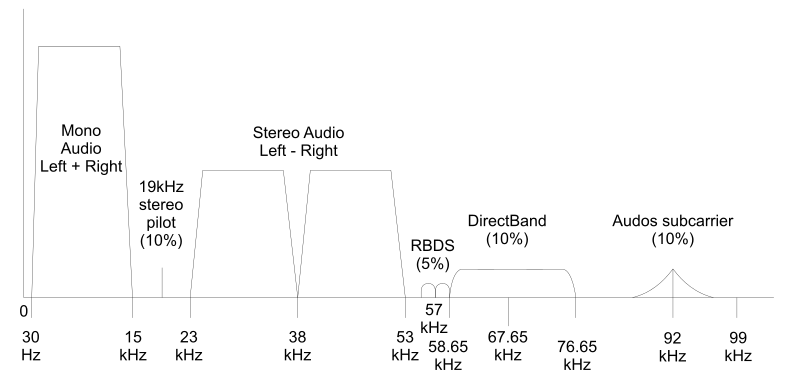
Consider the baseband FM diagram below.
Do not confuse the abscissa with RF spectrum–this is baseband spectrum that is FM modulated before being transmitted on air.
Unfortunately even some technically-oriented websites get this basic and critical fact wrong.
Plain monaural broadcast FM as used prior to 1955/1961, and used wisely by some talk stations today instead of stereo to improve geographic coverage area by reduction of multipath interference, is frequency modulated audio from 50 Hz - 15 kHz.
FM multiplexing was employed in the early FM experiments by Armstrong, back to Nov. 1934 to send additional audio channels, faxes, etc. and
SCA became generally legal for broadcasters in 1955.
The April 1961 selection of the GE / Zenith FM stereo system chose a 19 kHz stereo pilot.
19 kHz is high enough above legacy monaural receivers low-pass filter response to not bother listeners.
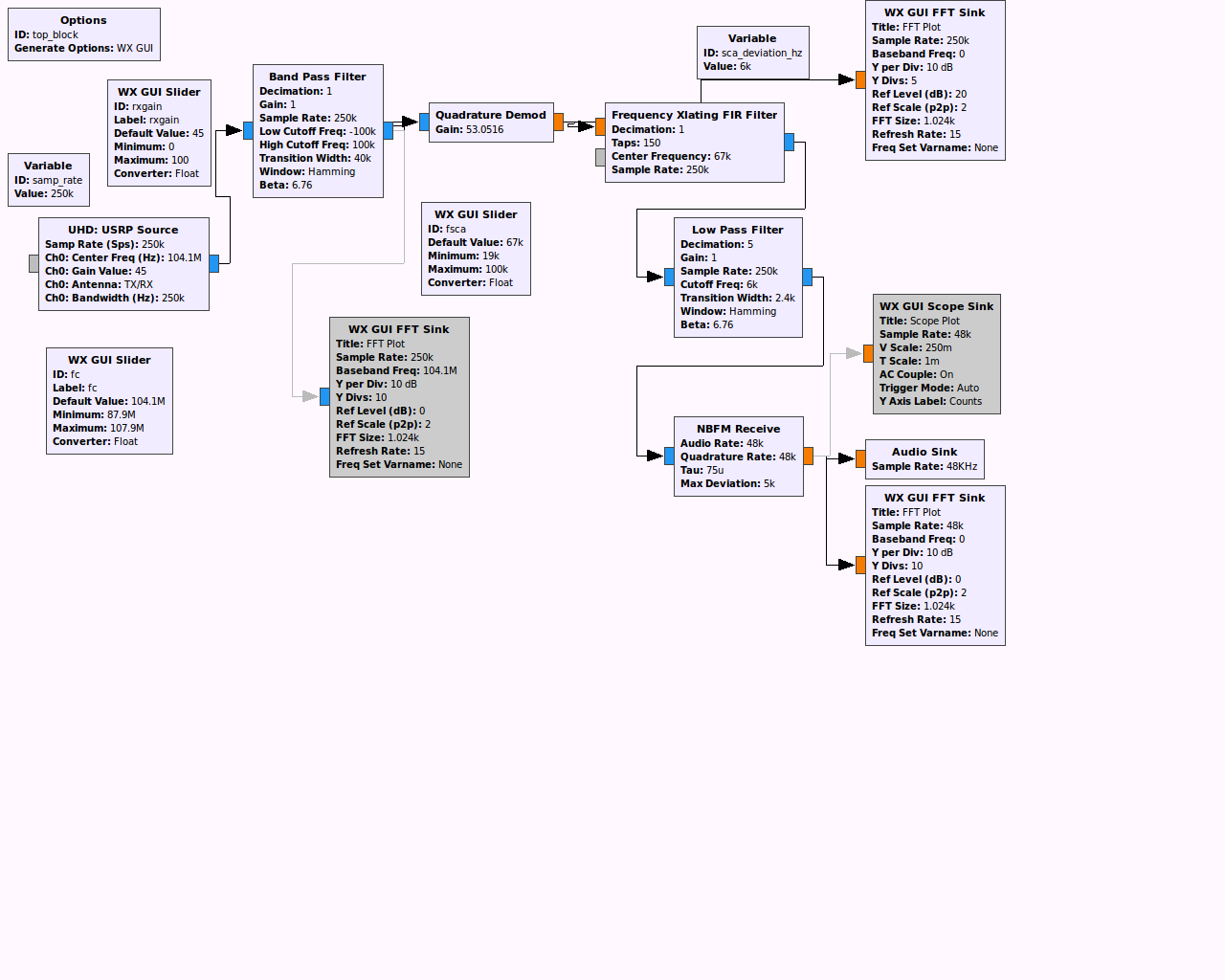
88-108 MHz receiver, perhaps direct conversion RTL-SDR, assuming 960 ks/s
bandpass filter say ± 180 kHz before FM demodulation, to block adjacent stations while not making too much distortion. Remember the infinite sidebands of FM–don’t just clip to ± 75 kHz, it will sound badly distorted. OK to decimate down to 480 ks/s.
plain FM demodulation (differentiator) – do not use de-emphasis at this point.
frequency translate and low-pass filter SCA carrier e.g. -67 kHz shift, then low-pass filter 10 kHz or so.
FM demodulate this signal with 150 µs de-emphasis and decimate to sound card rate e.g. 48 ks/s
A normal baseband audio signal is emitted, if one was broadcast at this SCA frequency.
When connecting to multiple Windows PCs using
SSH port forwarding,
you might get error:
The host key for localhost has changed
@ WARNING: REMOTE HOST IDENTIFICATION HAS CHANGED! @
IT IS POSSIBLE THAT SOMEONE IS DOING SOMETHING NASTY!
Someone could be eavesdropping on you right now (man-in-the-middle attack)!
It is also possible that a host key has just been changed.
Consider the security implications of option:
/cert-ignore
option in the freerdp command to bypass this error message.
Since the SSH server and RDP are both on the same Windows PC, the man-in-the-middle check may be somewhat less likely to be needed.