Dropping support for Python 3.5
The middle of 2019 is bringing increasing waves toward dropping support for Python 3.5.
| Project | Python 3.5 drop date |
|---|---|
| Django | April 2022 |
The middle of 2019 is bringing increasing waves toward dropping support for Python 3.5.
| Project | Python 3.5 drop date |
|---|---|
| Django | April 2022 |
By default, the Fortran MPI parallel sparse direct solver library MUMPS is extremely verbose, clogging up the terminal or log file with perhaps 100s of MBytes of text.
Disable the log messages by setting ICNTL as in the following MUMPS example.
Note: for MUMPS < 5.2 the ICNTL(4) does not take effect; that was a known bug.
MUMPS can be installed on Linux systems with package names like “mumps-openmpi-devel” or “libmumps-dev”, or install MUMPS using CMake MUMPS superbuild.
For ICNTL(1-4), setting the value ≤ 0 suppresses verbose messages.
ICNTL(4) allows fine-grained setting of verbosity; see page 54 of the MUMPS User Manual.
!! this must be called AFTER the first mumps call that had job=-1

program test_mumps
use, intrinsic:: iso_fortran_env, only: output_unit, error_unit
implicit none (type, external)

include 'dmumps_struc.h'  ! per MUMPS manual

type (dMUMPS_STRUC) :: mumps_par

mumps_par%ICNTL(1) = error_unit  ! error messages
mumps_par%ICNTL(2) = output_unit !  diagnostic, statistics, and warning messages
mumps_par%ICNTL(3) = output_unit ! global info, for the host (myid==0)
mumps_par%ICNTL(4) = 1           ! default is 2.  1 is less verbose

end programThis is a brief description of how we choose software licenses for over 100 geospace software projects. The discussion is quite simplified to keep length short. The 2018 NAS report on open source for NASA provides a useful software license survey for geospace science.
One of the costs of copyleft licensing to the contributing author is possible opportunity cost. Will the other party simply reimplement what you did to avoid your copyleft, and you lose out on collaboration / consulting? Would you actually have the resources and time to enforce the copyleft license?
A cost of permissive licenses is the lost possibility of licensing fees. If the code was developed for a grant or employer, the possibility of the contributing author actually getting those license fees may be small. Also the chance that anyone would even try to pay for a license rather than reimplement etc. is usually small for geospace programs.
Thus, except for large programs that would have real value to a large company or contractors thereof, we usually use MIT or Apache licenses. Permissive licenses such as MIT / BSD are among the most corporate-friendly and collaborator-friendly. For these programs, we get large companies using them who may be interested in consulting work. If the license was too restrictive (copyleft), we might not hear from these companies or possible collaborators. Types of programs for which we often use MIT / BSD permissive-style licenses:
For geospace programs and libraries that need to be used by geospace agencies, we typically use Apache. If the license is non-permissive, they might not be allowed to use / modify / distribute tje code freely and we might miss collaboration / consulting opportunities. The Apache license’s patent protection provisions read like those of GPLv3.
The Affero GPL, is said to provide some cloud / SaaS protections in addition to GPLv3 that it’s based on. However, there are also said to be “holes” in Affero GPL that have not yet been tested in court.
Copyleft licenses are often shunned by companies. Government agencies typically discourage and/or restrict copyleft usage. The trend from both industry and funding agencies is to support permissive open-source licenses instead of copyleft licenses.
Raspberry Pi OS includes Python 3. Here is how to compile the latest Python on the Raspberry Pi.
For apt installed Python modules that access hardware like GPIO, access system Python 3 via /usr/bin/python3.
Get prereqs on the ARM device:
apt install libffi-dev libbz2-dev liblzma-dev libsqlite3-dev libncurses5-dev libgdbm-dev zlib1g-dev libreadline-dev libssl-dev tk-dev build-essential libncursesw5-dev libc6-dev openssl gitExtract the latest Python source code
Configure (3 minutes on Raspberry Pi 2):
cd cpython-3.*

./configure --prefix=$HOME/.local --enable-optimizations
Build and install–this step takes 10-40 minutes, depending on Raspberry Pi model.
Do not use sudo!
make -j -l 4
make install
Note: don’t omit -l 4 or Pi will be quickly overwhelmed and error build.
This limits load average to 4. Without it, load average will soar to 100+ (bad).
Add to ~/.profile:
export PATH=$HOME/.local/bin/:$PATHthen open a new Terminal.
Check that which python3 and which pip3 etc. refer to ~/.local/bin/ instead of /usr/bin.
Don’t uninstall system Python 3 /usr/bin/python3 because system packages depend on it.
The PATH you set in Step 5 above makes Linux prefer the new Python.
Avahi mDNS allows connecting to the Raspberry Pi and other Avahi-enabled host devices without knowing the host IP address.
The default /etc/avahi/avahi-daemon.conf puts mDNS on all active interfaces–including WiFi.
This procedure is NOT typically needed. Find WLAN adapter name by
ip atypically named wlan0.
Also note the wlan0 IP address for testing if Avahi doesn’t work right away.
Edit /etc/avahi/avahi-daemon.conf to have
allow-interfaces=eth0,wlan0or whatever interface desired to have Avahi on.
Verify which interfaces and IPv6/IPv6 Avahi is active on from the Avahi host device:
service avahi-daemon statusTest Raspberry Pi Avahi mDNS: from another computer:
ping hostname.localIf that doesn’t work, try using the IP address as found on Avahi host:
ip aBe sure to open the Raspberry Pi ufw firewall port.
Port 22 (or other SSH port assigned in /etc/ssh/sshd_config on the Raspberry Pi) should be seen in:
ufw statusIf you prefer a Firewall GUI:
apt install gufwPrereqs
apt install avahi-utils mdns-scanFrom your laptop (or Pi if diagnosing)
avahi-browse -arpor
mdns-scanYou should see your device (also try this from your Pi).
Use SSH Public Key Authentication with ED25519 keys. Raspberry Pi is trivial to hack like any other device on any operating system if proper cybersecurity is not used. Why do you care if someone hacks your Pi? The hacker can use the Pi’s relatively powerful CPU & GPU to stage sophisticated attacks on the rest of your network.
It’s generally much better to use 440 MHz band instead of 144 MHz band for portable hand-held radios (walkie-talkies). The 440 MHz signal is able to pierce through openings in buildings better. The interference from computers, LED lights, phone chargers, etc. is generally 20 dB or more less on 440 MHz vs. 144 MHz.
Generally we use “wide” 25 kHz bandwidth, as the performance is about 4 dB better than “narrow” 12.5 kHz spacing due to the nature of FM analog “processing” gain from wider bandwidth. That is, in the absence of interference, 25 kHz wide modulation performs significantly better than 12.5 kHz narrow modulation. Most members have analog-only radios at this time, so we kept with analog FM.
In North America, consider 445.975, 446.0, or 446.025 MHz for FM simplex, to help avoid interfering with data links or repeater backbone links.
With modern radios after about year 2000 or so, there isn’t a significant advantage of one PL tone over another. There is too much bursty interference to run carrier squelch (no PL).
Python packages can make Python scripts callable from any directory, by adding them to system PATH via the <PythonDistroRoot>/bin directory.
On a typical Anaconda Python install, the shortcuts to these scripts are installed in a directory like ~/miniconda3/bin/
Make sure entry points are set up correctly before running pip install, or you will get the VersionConflict error (See Notes at bottom of this article).
Here is a simple example “src/mypkg/adder.py” to run directly from console (in any directory) as
add_two 6.75to get result 8.75.
Note that the end user doesn’t even know they’re running a Python script.
#!/usr/bin/env python3
from argparse import ArgumentParser


def add_two(x: float) -> float:
    return x + 2


def cli():
    p = ArgumentParser(description='adds two to number')
    p.add_argument('x', help='number to add two to', type=float)
    P = p.parse_args()

    print(add_two(P.x))
For each function you wish to have be accessible from anywhere on the system be sure there is a function that handles console arguments as in the example above.
Add to pyproject.toml:
[project.scripts]
add_two = mypkg.adder:cli
VersionConflict error may come from old entry_points in the Python distro bin/ directory that need to be
removed.
Importing Fortran code in Python just like any other Python module is very straightforward, using F2py. On any operating system, a Fortran compiler and Numpy are required to use F2py. If you don’t already have a Fortran compiler, we suggest GNU Gfortran.
brew install gccapt install gfortranpacman -S mingw-w64-ucrt-x86_64-gcc-fortranTry the lowtran7 code. Following the instructions there, you should get
lowtran7.cp37-win_amd64.pyd (on Windows) or lowtran7*.so (on macOS / Linux) filepython DemoLowtran.py creates a plot of atmospheric loss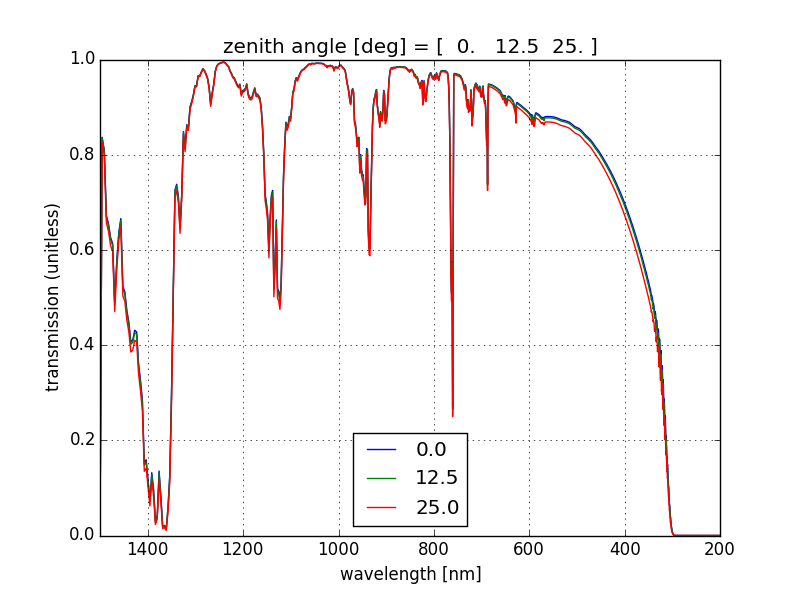
f2py does not allow inline comments for COMMON blocks for Fortran 77 .f code.
This is because f2py works more strictly to Fortran specifications than most modern compilers.
Inline comments are not Fortran 77 standard, and will make f2py throw an error.
To fix this problem, just make the inline comment a full-line command with ! in column 1.
Fortran90 .f90 files won’t throw an f2py error due to inline comments on a line with a COMMON block:
goodcomment.f90.
This will manifest itself two different ways, depending on whether you have implicit none or not:
Example in badcomment_implicit.f:
var2fixfortran: No typespec for argument “x ! bad for fortran77”. getctype: No C-type found in “{}”, assuming void. KeyError: ‘void’
Solution: Make inline comment a full-line comment with ! in column 1.
Example in badcomment.f
error: expected ‘;’, ‘,’ or ‘)’ before ‘!’ token
Solution: Make inline comment a full-line comment with ! in column 1:
goodcomment.f.
Another solution is to use Windows Subsystem for Linux with Anaconda Python. However, with the techniques below, I’ve always gotten f2py to work on Windows.
Tell Python to use MinGW by creating file ~/pydistutils.cfg containing:
[build]
compiler=mingw32
Do this from Powershell by copy/paste this line:
echo "[build]`ncompiler=mingw32" | Out-File -Encoding ASCII ~/pydistutils.cfg‘f2py’ is not recognized as an internal or external command, operable program or batch file.
Ensure Numpy is installed
conda install numpy(Windows) create a file <Anaconda Python install directory>/Scripts/f2py.bat with content
python %~dp0/f2py.py %*Error: No module named ’numpy.distutils._msvccompiler’ in numpy.distutils; trying from distutils
is fixed by: create file ~/pydistutils.cfg as above
error LNK2001: unresolved external symbol _gfortran_st_write error LNK2001: unresolved external symbol _gfortran_st_read
and similar errors are typically from not having told f2py to use gfortran by: create file ~/pydistutils.cfg as above
An alternative to ~/pydistutils.cfg is for each F2py package install:
python setup.py build_ext --inplace --compiler=mingw32If you have problems using f2py or other development work on Windows, consider Windows Subsystem for Linux, which runs at full performance within a terminal window on Windows.
Related: simple F2py Fortran examples
Find very precise Raspberry Pi model info from Terminal, without looking at the PCB, from Raspberry Pi terminal:
cat /proc/cpuinfo | grep 'Revision' | awk '{print $3}' | sed 's/^1000//'Compare to Raspberry Model code table
Overleaf Git and GitHub integration allow offline collaboration and more featureful diff tracking.
Parts of the Overleaf code base are open source.
Overleaf with GitHub offers the benefit of a second live copy in case you’re worried about corrupted documents.